What is ReachDeck?
Using Reachdeck
 What is Reachdeck?
ReachDeck is a tool that helps make website content easier to read and understand.
It provides support for people who may prefer to:
- listen to text instead of reading
- translate content into another language
- increase text size
- reduce distractions on the page
ReachDeck includes the following features:
- Text to speech – listen to text on a webpage
- Translation – translate written and spoken content into multiple languages
- Text magnification – enlarge text while it is read aloud
- MP3 download – convert selected text into an audio file
- Screen mask – highlight a small reading area to improve focus
- Page simplifier – remove images and other distractions
- Settings – personalise how the tools work
How to open ReachDeck
- Locate the ReachDeck launch button
 to open the accessibility toolbar. The button is usually located near the bottom of the webpage.
 - Select the button to open ReachDeck.
- When selected, a toolbar will appear at the top of the page.

Each button (icon) on the toolbar controls a different accessibility feature.
If you want help identifying the tools:
- Select the Help icon
 on the toolbar.
 - A guide will appear explaining what each button does.
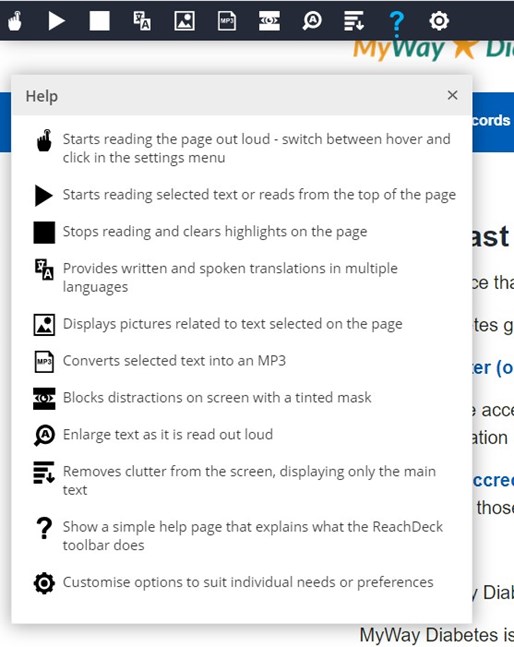
Listening to text on the page
ReachDeck can read text aloud in two ways.
Option 1: Hover to Speak
- Select the Hover to Speak button
 on the toolbar.
 - Move your cursor to the beginning of the text.
- Select the text area to start reading.
- The text will be read aloud.
Option 2: Speak selected text
- Select the Speak Selection button
 .
. - Highlight the text you want to hear.
- The selected text will be read aloud.
- To stop the audio, select the Stop button
 on the toolbar.
Translating a webpage
ReachDeck can translate website content into 99 languages and read text aloud in 40 languages.
- Select the Translation button
 .
. - Choose a language from the list.
- The webpage will automatically translate.
- To hear the translated text spoken aloud, select the Play button
 .
.
Picture Dictionary
The Picture Dictionary shows images related to selected words.
- Highlight a word on the page.
- Select the Picture Dictionary button
 .
. - Images related to the word will appear.
Downloading audio (MP3)
You can convert text on a webpage into an audio file.
- Highlight the text you want to convert.
- Select the MP3 (audio download) button
 .
. - An audio file will be created that you can listen to later.
Screen mask
The Screen Mask helps reduce visual distractions.
- Select the Screen Mask button
 .
. - A coloured overlay will appear across the screen.
- A clear reading area will highlight a small section of text.
This can help you focus on one part of the page at a time.
Text magnification
The Text Magnifier enlarges text as it is read aloud.
- Select the Text Magnifier button
 .
. - The text will appear larger on screen.
- You can adjust the font, size and colour in the settings menu
 .
.
Simplifying a webpage
The Simplify feature removes images and other distractions.
- Select the Simplify button
 .
. - The page will display the main text only.
Changing your settings
Select the Settings button on the toolbar to personalise how ReachDeck works.
You can:
- change highlight colours
- turn text magnification on by default
- adjust the size of magnified text
- turn Hover to Speak on or off
- change the speech speed
- set Simplify as the default page view
- highlight links on webpages
Learn more
Watch the video below for a demonstration of how to use ReachDeck.